
5.2 KiB
Running DRC and LVS
To follow this doc, you will need to have successfully run the flow to completion.
You will need the files
outputs/apr/DBS/<design_name>.phy.vandoutputs/apr/DBS/<design_name>.merged.gds.
DRC and LVS are run in Pegasus, a tool within Cadence Virtuoso.
First, we need to stream our GDS into a new library.
To stream in a GDS:
-
Enter the signoff directory with
cd $wd/signoff.This directory is prepopulated with a
cds.libthat contains some libraries we will reference when creating our own.
Note: If
cd $wd/signoffdidn't work, you're probably not inSJapr. Please runtcshandsource envsetupbefore continuing.
-
In this directory, run
make virtuoso.This will open the Virtuoso GUI. Give it up to a minute to load.
Note: This opens a GUI. That means we must do this from within FastX.

- In the GUI, select
File > Import > Stream. This opens a new window.

- In the new window, specify the following information:
| Field | Value |
|---|---|
| Stream File | outputs/apr/DBS/<design_name>.merged.gds. You will have to click the folder icon, then navigate to the gds file. |
| Library | A name for your new library (can be anything, just don't select from the dropdown) |
| Attach Tech Library | sky130_fd_pr_main (from the dropdown). This populates some of the other fields automatically. |
-
Click
More options. In the new window, click the folder icon for theRef Lib File Namefield and chooseNoCollateral.reflib. -
Click
Ok, then clickApply. It will load for a moment, then you should get a message that it finished with 0 errors.Your library is created.
To open your library:
-
In the original Virtuoso menu, choose
Tools > Library Manager. A new window opens. -
In the Library Manager window, choose your library, then choose the name of your toplevel cell (probably
chip_top), then clicklayout.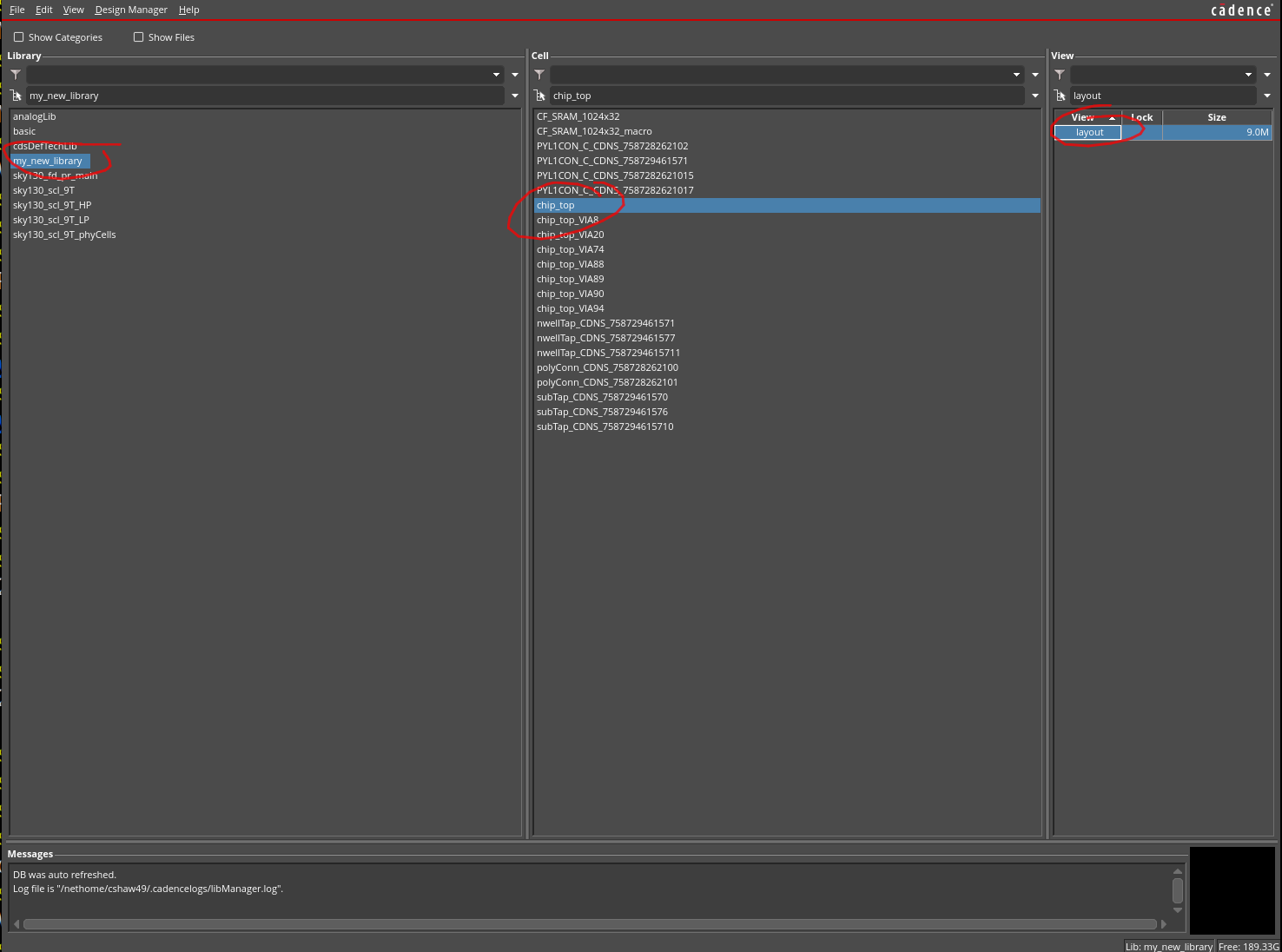
The tool will load for a moment, then your layout will appear.
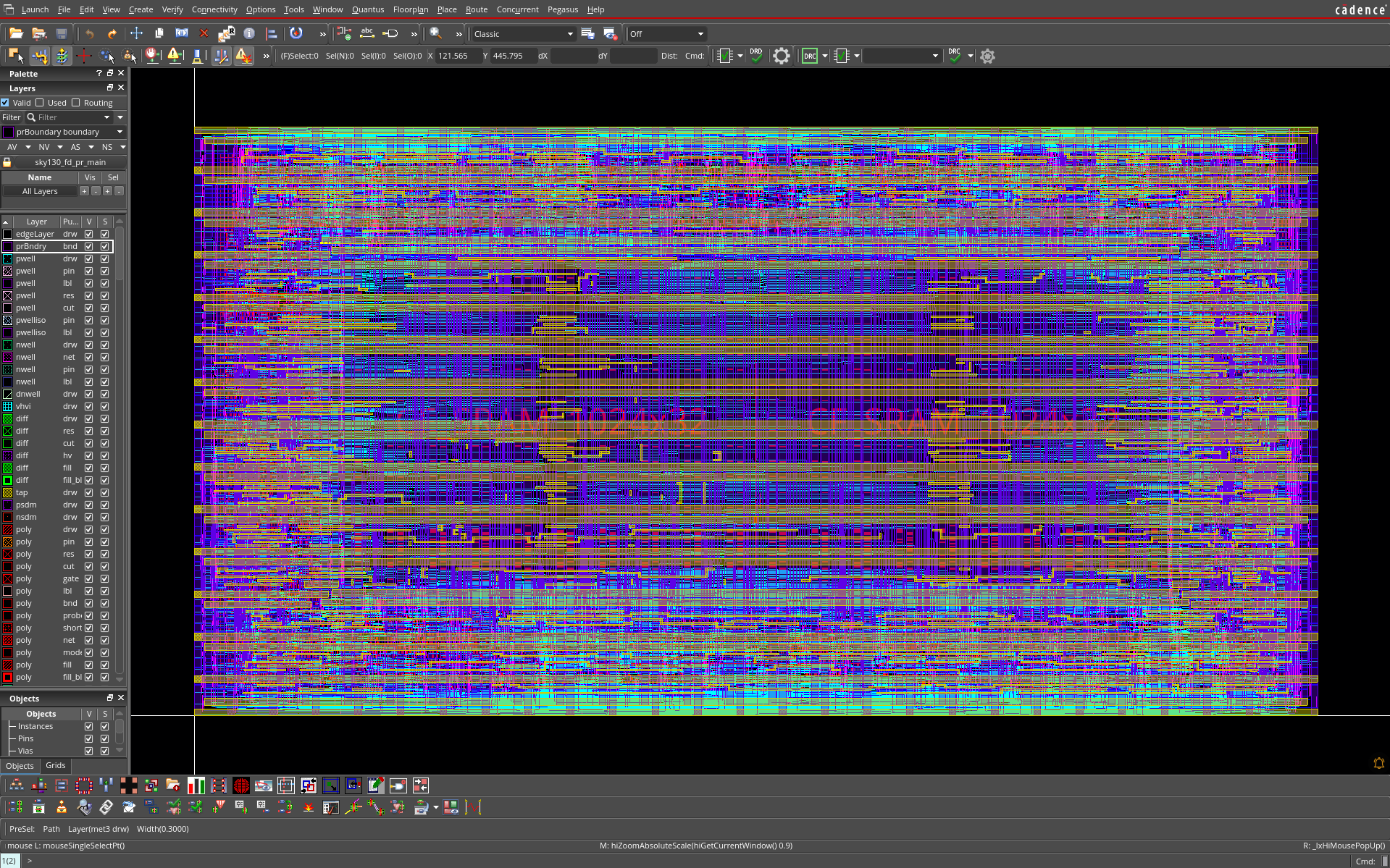


To run DRC on your design:
-
With your design's layout open (as above), click
Pegasus > Run DRCin the top bar. The Pegasus DRC window opens.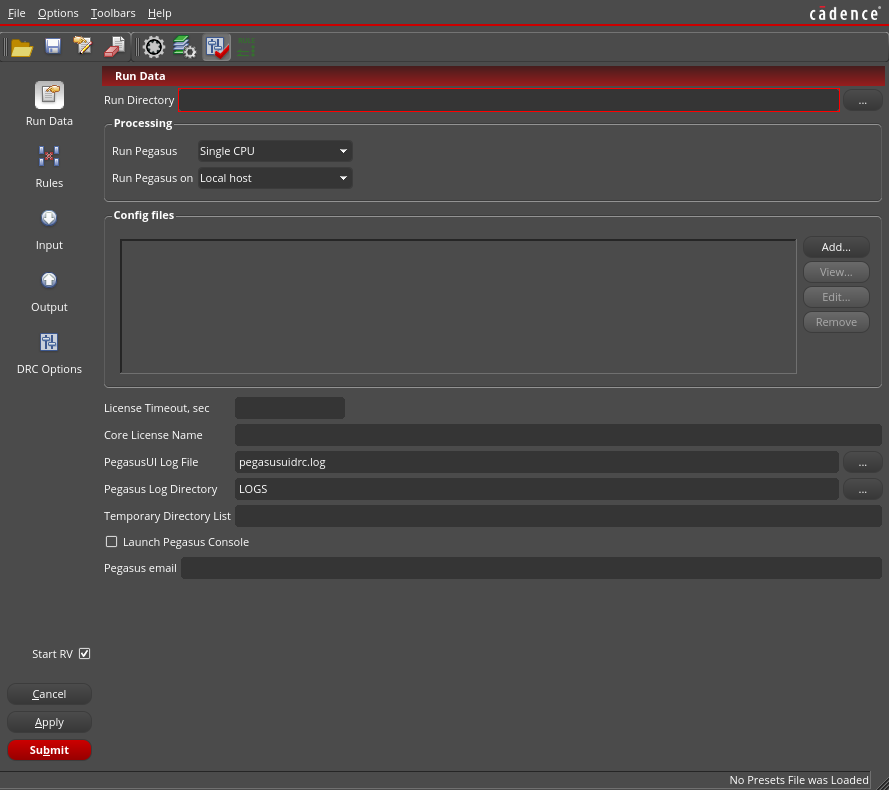
-
In the
Run Datasidebar, click the three dots next to theRun Directoryfield, and select thesignoff/runs/directory, then clickChoose. -
In the
Rulessidebar, click theAddbutton.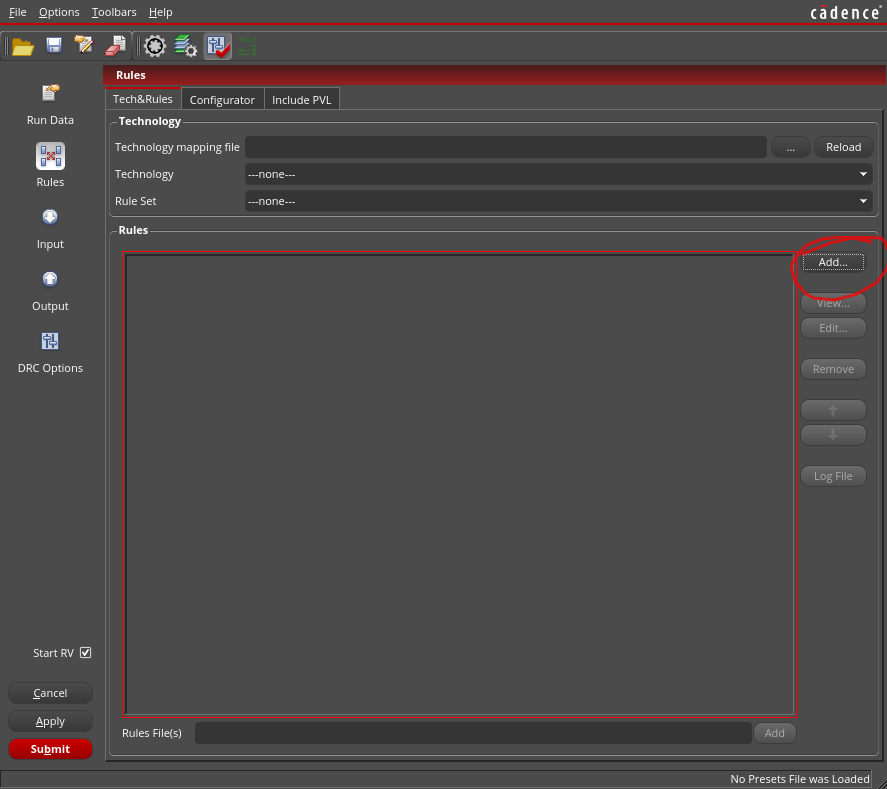
In the popup, navigate to
resources/cadence_sky130/sky130_release_0.1.0/Sky130_DRC/and choose the filesky130_rev_0.0_2.12.drc.pvl, then clickOpen.In the
Configuratortab, check theUse Configuratorbox, then click the three dots next to theInputfield.In the popup, navigate to
resources/cadence_sky130/sky130_release_0.1.0/Sky130_DRC/and choose the filesky130.drc.cfg, then clickOpen.In the
Include PVLtab, check theInclude PVL Rulescheckbox, then check theExclude Cellscheckbox. In theexclude_cellfield on the right, type*CF_SRAM*, then clickAdd.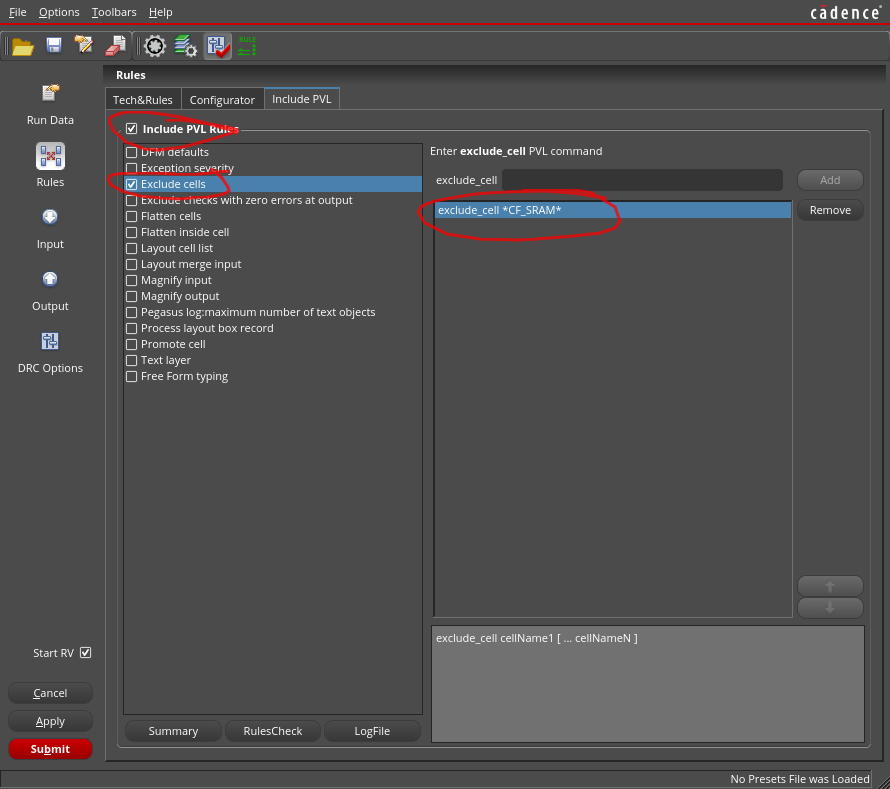
-
Click
Submit. This will run DRC and generate a report.


Note: We don't intend for you to fix these DRCs, but it is important that you understand what is causing them.
Try to click the errors in the post-run popup -- the tool will highlight the region the selected error is in in the layout.
To run LVS on your design:
-
With your design's layout open (as above), click
Pegasus > Run LVSin the top bar. The Pegasus DRC window opens.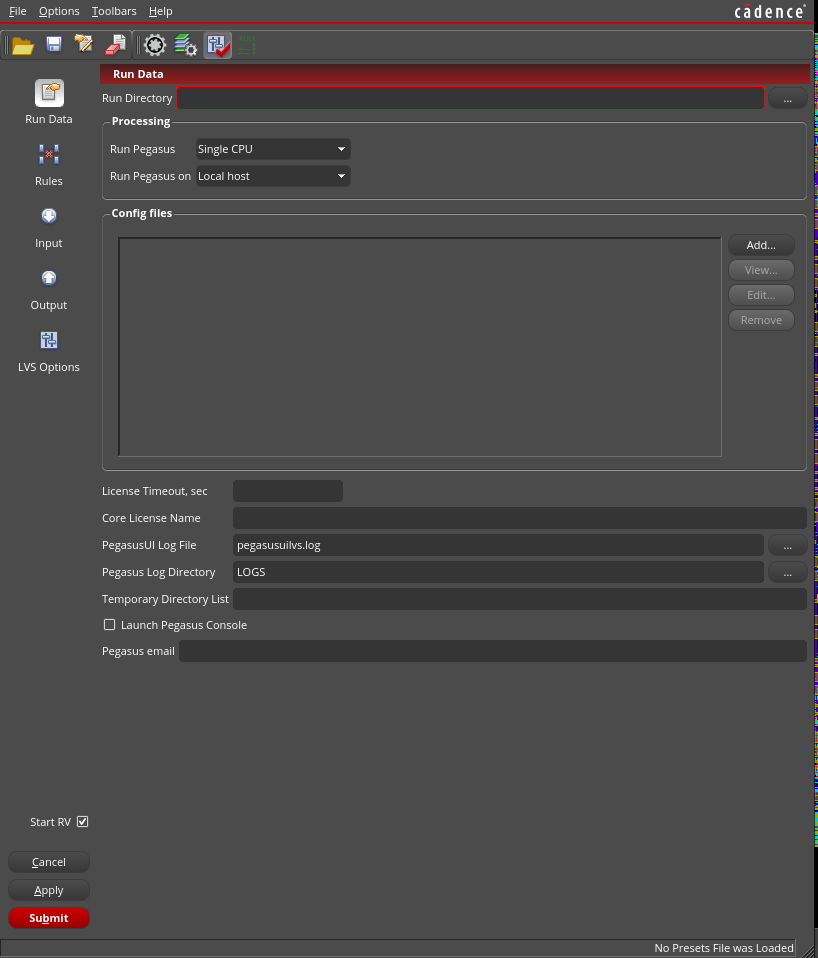
-
In the
Run Datasidebar, click the three dots next to theRun Directoryfield, and select thesignoff/runs/directory, then clickChoose.

If you just ran DRC, you'll probably get a popup asking if you want to overwrite this directory later. If that happnes, just click
Ok.
-
In the
Rulessidebar, click theAddbutton.In the popup, navigate to
resources/cadence_sky130/sky130_release_0.1.0/Sky130_LVS/and choose the filesky130.lvs.v0.0_1.1.pvl, then clickOpen.In the
Include PVLtab, check theInclude PVL Rulescheckbox, then theExclude cellscheckbox. In theexclude_cellfield on the right, type*CF_SRAM*, then clickAdd.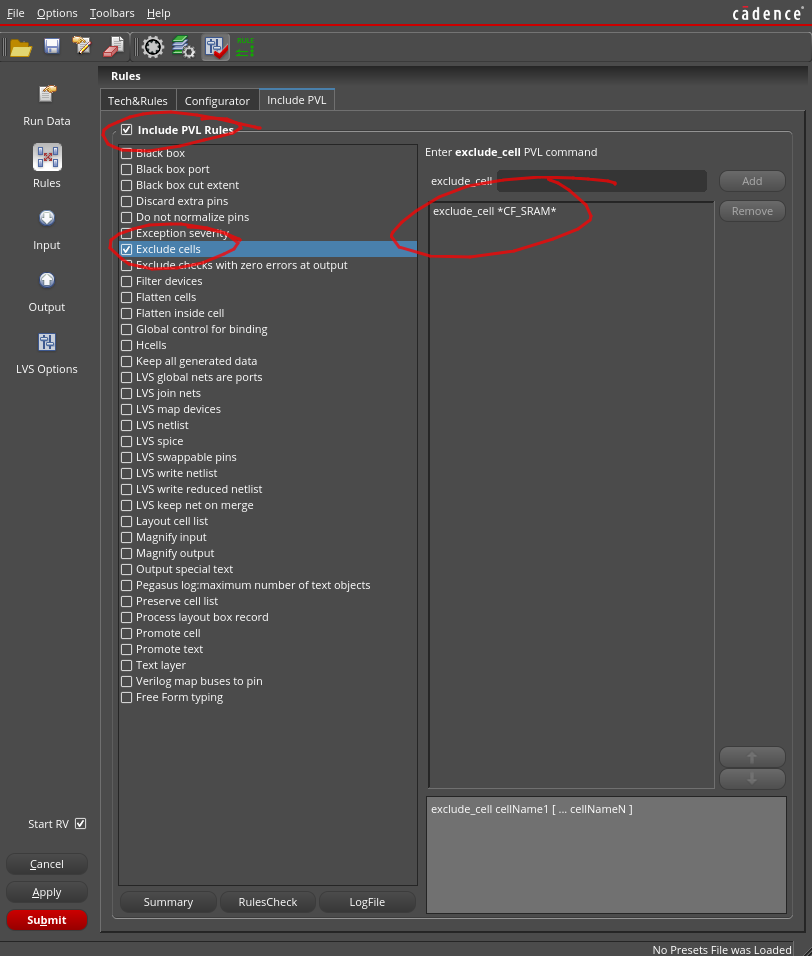
-
In the
Inputsidebar, click theNetlistradio button underSchematic.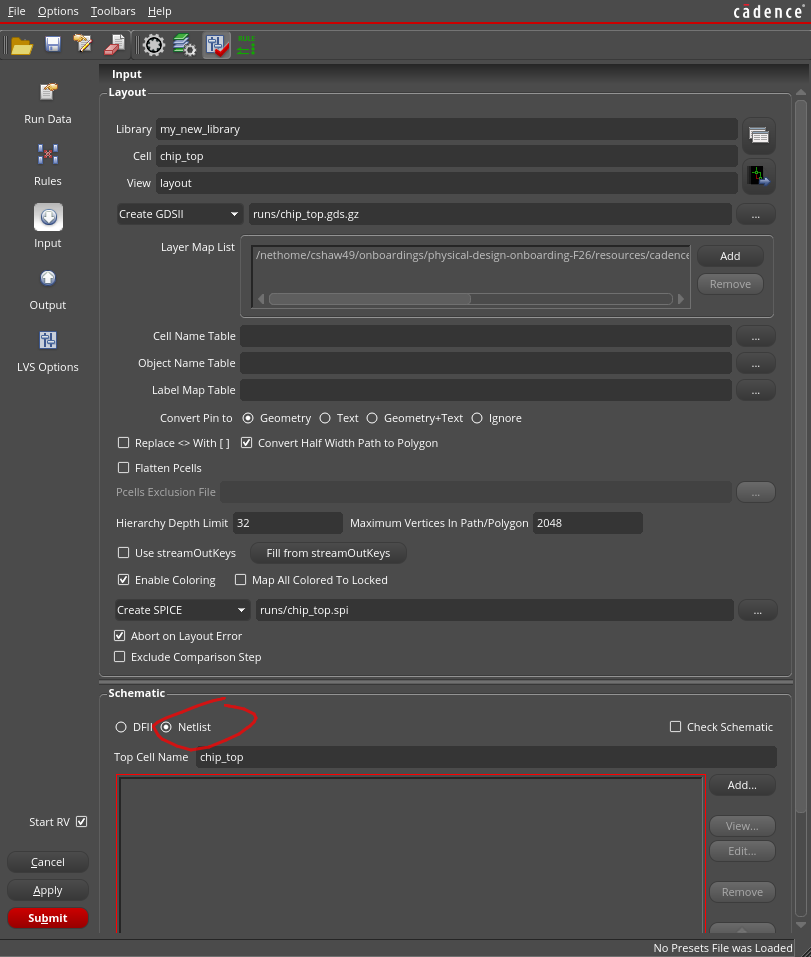
We have to add a number of files in this section. Add the following:
outputs/apr/DBS/<design_name>.phy.v(LVS is Layout vs Schematic. The GDS is our Layout, and this file is our Schematic!)signoff/CF_SRAM_1024x32.cdlresources/cadence_sky130/sky130_scl_9T_0.1.2/sky130_scl_9T/cdl/sky130_scl_9T.cdlresources/cadence_sky130/sky130_scl_9T_0.1.2/sky130_scl_9T_tech/cdl/sky130_scl_9T_phyCells.cdlresources/cadence_sky130/sky130_scl_9T_0.1.2/sky130_scl_9T_LP/cdl/sky130_scl_9T_LP.cdlresources/cadence_sky130/sky130_scl_9T_0.1.2/sky130_scl_9T_HS/cdl/sky130_scl_9T_HS.cdl
-
Click
Submit. This will run LVS and generate a report.


Note: We don't intend for you to fix these LVS errors, but it is important that you understand what is causing them.
Try to read the output and identify the source of the LVS errors.